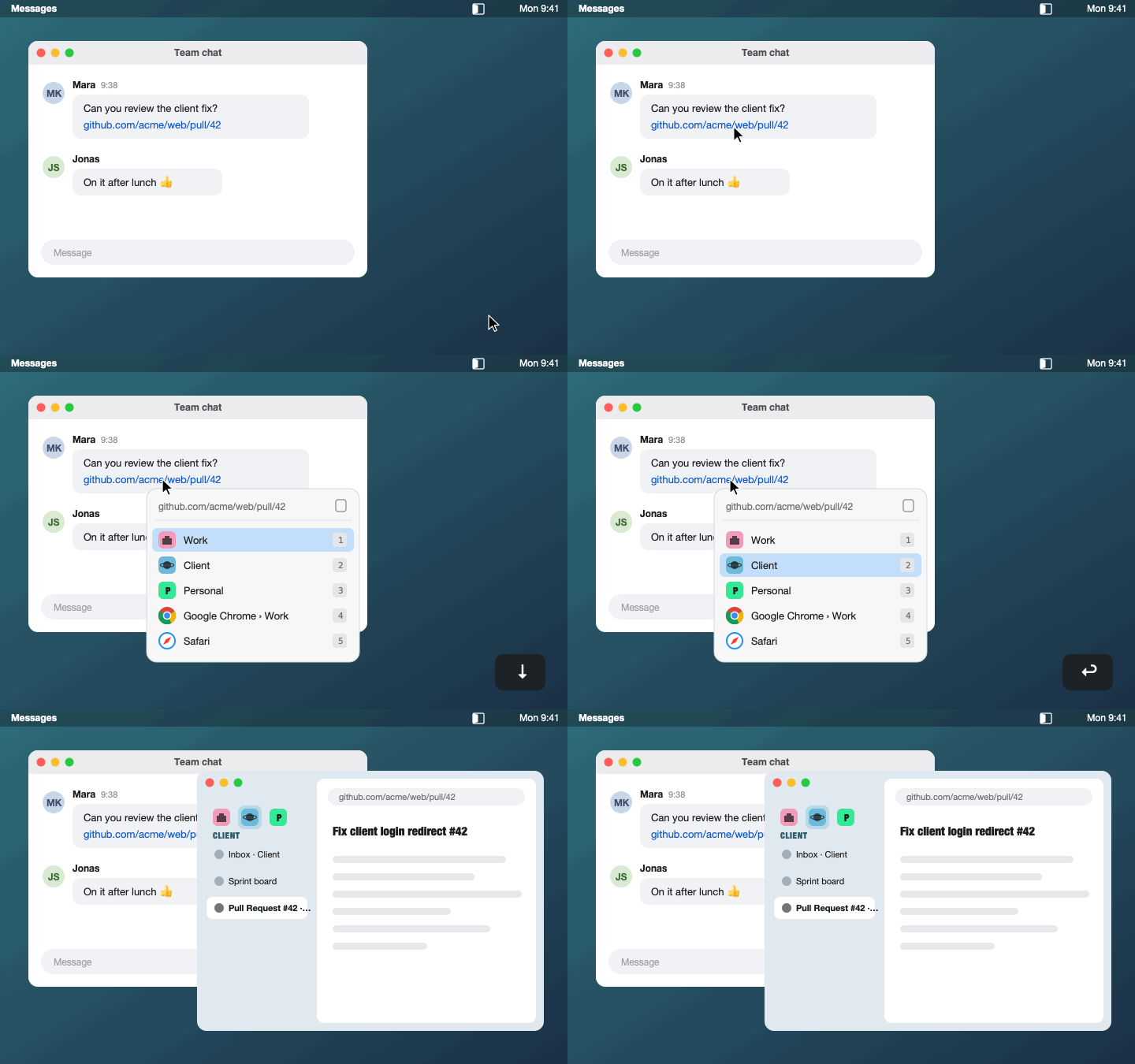
One space per client, and links that land in it
Links from Slack, Mail or Teams open in whatever browser window happens to be in front. If you keep work, clients and private life in separate Zen spaces or browser profiles, that means the wrong account, again, and moving tabs by hand.
Browserdoor sits between the click and the browser. It shows each Zen space as its own entry, next to your Chrome and Firefox profiles and other browsers. Press a number key, or click, and the link opens there.
What it finds
- Zen spaces
- With their names, icons and colors. Links open through Zen’s
--spaceflag (Zen 1.24 or later). - Chromium profiles
- Every profile of Chrome, Brave, Edge, Vivaldi and Chromium as its own entry.
- Firefox profiles
- Including the ones from Firefox’s new profile manager.
- Only real browsers
- Terminals, web-app wrappers and test builds stay out of the list. Add any other app yourself.
- Several links at once
- Links that arrive together share one picker, so one choice opens them all.
- Quiet
- A small native menu bar app. Its only network request is the daily update check, which you can switch off.
Made for the keyboard
| 1 … 9, 0 or your own key | Open the link in that target |
|---|---|
| ↑ ↓ then Return | Move the selection, then open |
| ⌘C | Copy the link |
| Esc | Cancel |
Order, names, keys and hidden entries live in ~/.config/browserdoor/config.json, so you can keep them in your dotfiles.
Install
As a download
- Download Browserdoor.dmg (older versions are on the releases page).
- Open it and drag Browserdoor to Applications, then start it from there.
- Confirm Browserdoor as your default browser when macOS asks.
The app updates itself: once a day it checks for a new version and installs it when you agree.
With Homebrew
- Install:
brew install schowave/tap/browserdoor - Start it:
browserdoor - Confirm Browserdoor as your default browser when macOS asks.
Updates arrive through brew upgrade, and Browserdoor restarts itself afterwards.
The README covers configuration, troubleshooting and uninstalling, the changelog what changed.